
Over-provisioned EC2 instances have a high cost and may not need the amount of resources provisioned to run the workload. You can rightsize it (reduce CPU/RAM) without breaking the normal usage.
Rightsizing involves adjusting the instance type to better match your workload’s requirements. For example, you might downgrade from a 4xlarge to an xlarge instance.
Opting for the latest instance technologies, such as AWS Graviton, can also reduce costs, though compatibility checks may be required.
Subtitles are available in English, French and Spanish. Click here to get the full masterclass.
How to identify?
From our Cost Optimizations Report, check at EC2_Rightsize section.
In AWS Console: Go to the EC2 service, then select the Instances section. Click on an instance, then go to the Monitoring tab. Adjust the data range to at least the last 4 weeks (6 months is recommended). Confirm that the CPU Utilization (%) graph is low, for example:
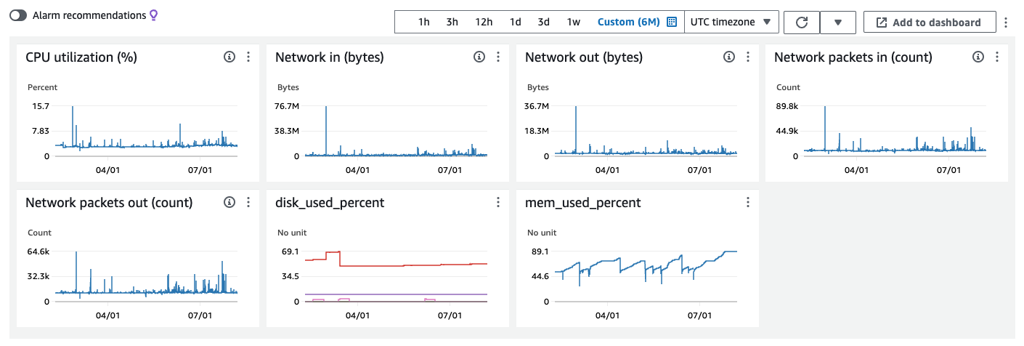
If the maximum CPU usage is 15% during this period, you could safely reduce the provisioned CPU by a factor of 4. However, you must also check Memory. If mem_used_percent peaks at 90%, you cannot reduce Memory, but you might still optimize CPU by switching to a different instance class with the same Memory allocation.
To do this, check your instance type or class, then refer to https://aws.amazon.com/ec2/instance-types/ to compare your current vCPU and Memory with other classes.
Ensure that rightsizing will not impact network performance. If necessary, review your database’s network metrics.
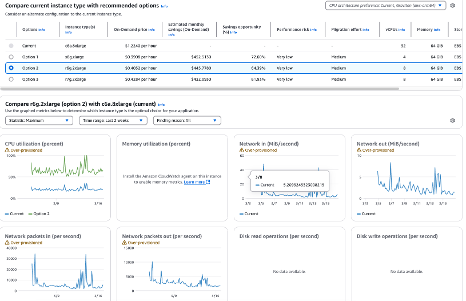
- In AWS Console, navigate to the AWS Compute Optimizer service, then select the EC2 Instances section for tailored recommendations.
- In AWS, go to Cost Optimization Hub and filter savings opportunities by EC2 Instance with the recommended action set to Rightsize.
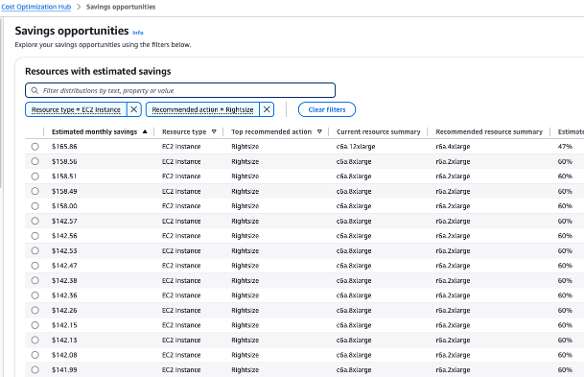
Note: These recommendations are based on the last 10 days. Always confirm with a longer period in AWS Console. However, this provides a good overview of the recommended instance type and its impact on CPU.
Memory metrics are often not reported by default in AWS. Since Memory is critical for rightsizing, either connect to the instance to check Memory usage or enable EC2 Memory Metrics in CloudWatch.
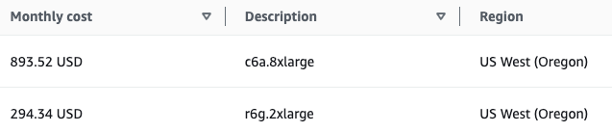
Use the AWS Pricing Calculator to estimate savings. https://calculator.aws/, Select EC2 Service and compare generation prices. For example, rightsizing a c6a.8xlarge instance to an r6g.2xlarge could save $602 per month (67% reduction).
How to fix?
If the servers are in production, schedule a maintenance window and take a snapshot as a precaution. You must stop the instance before changing its type. For production environments, consider using EC2 Auto Scaling or creating a new instance and migrating data.
In AWS Console:
Go to the EC2 service, then select the Instances section.
Choose an instance, then click Instance state > Stop instance.
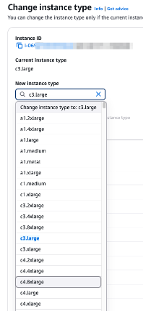
Once stopped, go to Actions > Instance settings > Change instance type.
Select the new instance type, review the comparison, and click Apply.
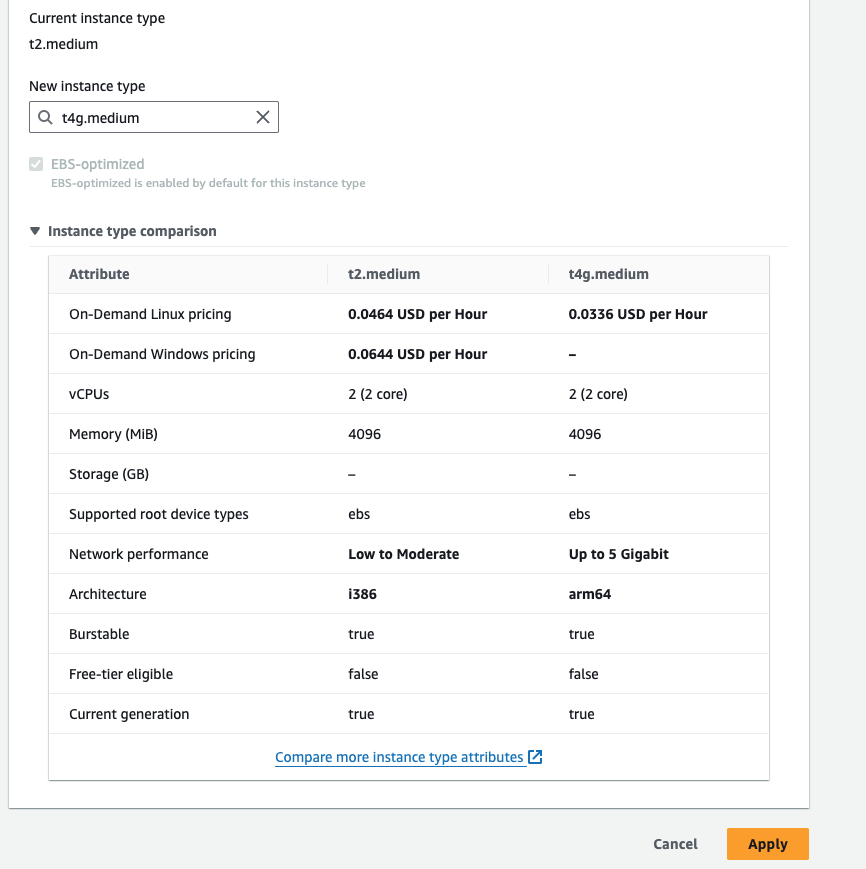
If the resources are created automatically (e.g., via CloudFormation or Terraform), update your code to reflect the new instance type.