
Idle RDS Instances — those without active connections or sessions — still incur monthly costs.
Subtitles are available in English, French and Spanish. Click here to get the full masterclass.
How to identify?
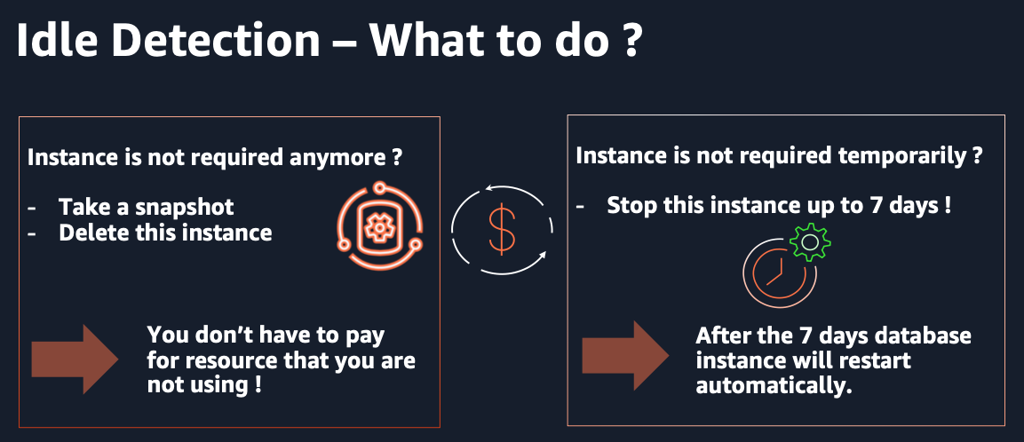
You can identify idle RDS Instances using the following methods:
From our Cost Optimizations Report, check at RDS - Idle Instances section.
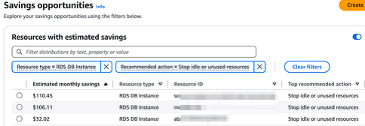
In AWS Console, navigate to the Cost Optimization Hub and filter by RDS DB Instance with the recommended action set to Stop:
In AWS Console, go to Trusted Advisor, then select the Cost Optimization section. Click on Amazon RDS Idle DB Instances to view the list:

In AWS Console, go to the RDS service, then select the Databases section. Look for instances with Current Activity = 0 sessions or connections (this information may not always be visible). Click on Monitoring and review data for at least the last 4 weeks (6 months recommended). Confirm that the DatabaseConnections diagram is empty, as shown in the example below:
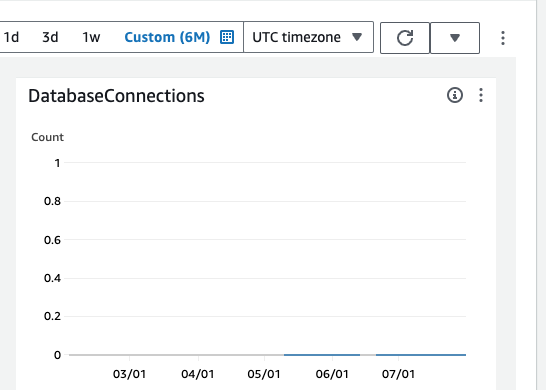
Review other monitoring diagrams to determine if the RDS Database can be deleted. Consult your team before proceeding with any deletion.
How to fix?
Temporarily Stop the Database:
Ensure the RDS Database is no longer needed before deletion. In AWS Console, go to the RDS service, then select the Databases section. Choose the database you want to stop.
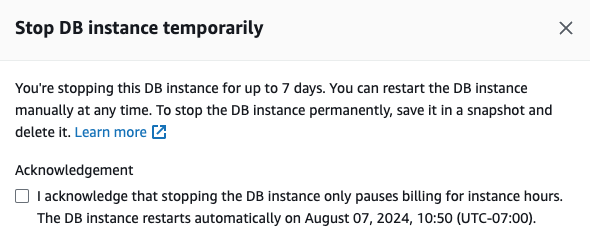
If unsure, click Actions > Stop Temporarily. This will stop the database for 7 days and automatically restart it, allowing your team to verify if the database is still required.
Permanently Delete the Database:
If you are certain the database is no longer needed, click Actions > Delete. Keep the default options to create a final snapshot, which you can delete later if unnecessary.
Note: If the RDS Instances are provisioned automatically (e.g., via CloudFormation or Terraform), update your infrastructure-as-code (IaC) to reflect these changes.