
The AWS cost of supporting old database versions can be significantly higher compared to the compute price. Regular upgrades are essential to avoid unnecessary expenses, ensure security, and access the latest features.
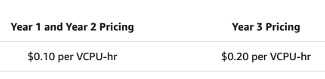
For release calendars, refer to:
Subtitles are available in English, French and Spanish. Click here to get the full masterclass.
How to identify?
You can identify databases approaching or on extended support using the following methods:
From our Cost Optimizations Report, check at RDS_Extended_Support section.
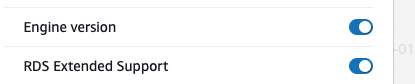
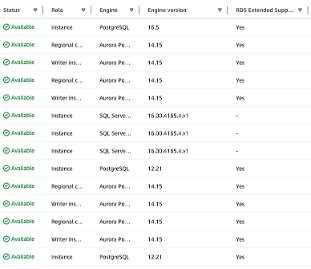
In AWS Console, navigate to the RDS service, then select the Databases section. Go to the settings (⚙️) and add the Engine Version and RDS Extended Support columns:
The RDS Extended Support column indicates whether a database is enrolled in extended support, but not necessarily incurring the cost yet. Compare the engine version with the release calendars above to determine if an upgrade is needed:
In AWS Console, go to Billing and Cost Management, then select the Bills section. Click on Relational Database Service (RDS), followed by your region. Search for "Extended Support". If you see a line item for this cost, your database is on extended support:


How to fix?
Upgrade your databases before extended support begins. Upgrades can be complex and time-consuming, especially if legacy code requires updates for compatibility.
In AWS Console, go to the RDS service, then select the Databases section.
Choose the database you want to upgrade, then click Actions > Upgrade Now or Upgrade at Next Window:
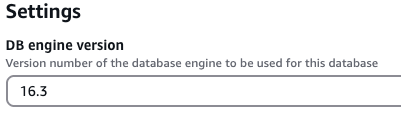
Note: If your RDS databases are provisioned automatically (e.g., via CloudFormation or Terraform), update your infrastructure-as-code (IaC) to reflect the new version.