 EC2 Idle Instances have a CPU Usage below 2% and are recommended to be deleted.
Subtitles are available in English, French and Spanish. Click here to get the full masterclass.
How to identify?
- From our Cost Optimizations Report, check at EC2 - Idle Instances section.
In AWS Console, go to the EC2 service, then select the Instances section.
Click on an instance, then go to Monitoring. Set the data range to at least last 4 weeks (6 months recommended).
- Confirm the CPU Utilization (%) diagram is very low.
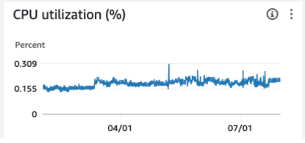
Check other metrics like Memory Utilization to help determine if the instance should be deleted. Consult your team before any deletion.
In Cost Optimization Hub, view the graph per resource type.
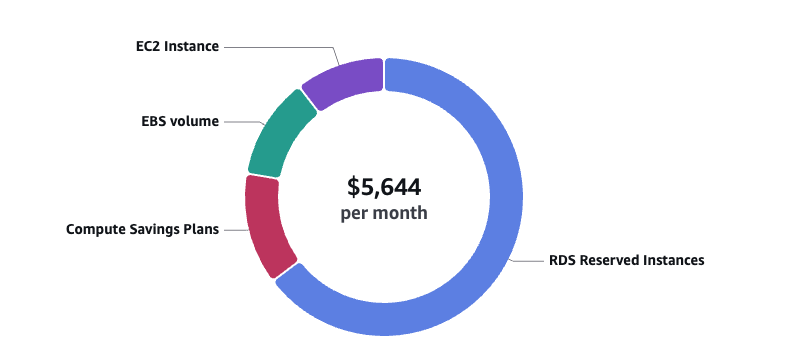
Click on View opportunities, filter by EC2 Instance, and check the Top recommended action = Stop.
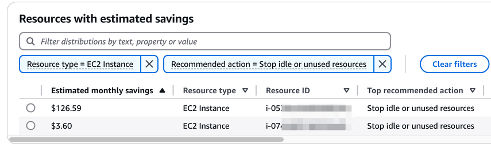
How to fix?
Ensure the EC2 instance is no longer needed before deleting it.
In AWS Console, go to the EC2 service, then select the Instances section.
If unsure, click Instance state > Hibernate instance or Stop instance to pause the instance temporarily.
If you are certain, click Instance state > Terminate instance. Consider deleting the attached EBS volume if it is no longer needed.
If termination protection is enabled, disable it via Actions > Instance settings > Change termination protection and uncheck the Enable box.
If the resource is provisioned automatically via IaC (such as CloudFormation or Terraform), update the corresponding code to reflect the changes.