 Unused EBS Volumes — whether in an idle state (less than 1 IOPS operation per day) or unattached/available — incur a monthly cost. Always confirm that a volume is no longer needed before deleting it.
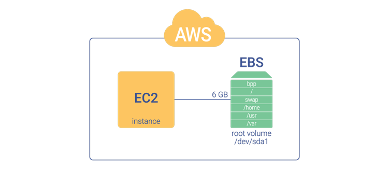
Subtitles are available in English, French and Spanish. Click here to get the full masterclass.
How to identify?
You can identify unused EBS Volumes using the following methods:
- From our Cost Optimizations Report, look at the section EBS - Idle Volumes.
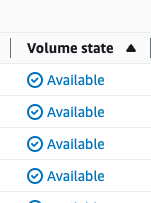
In AWS Console, navigate to the EC2 service, then select the Volumes section. Filter by Volume state to identify unattached or idle volumes. Larger volumes typically incur higher costs.
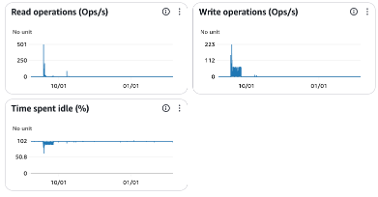
An Idle state volume is also an attached volume with less than 1 IOPS/day. In AWS Console, go to EC2 service, then Volume section. Click on one volume ID, then Monitoring section. Check read and write operations as long as Time spent idle diagrams over last month.
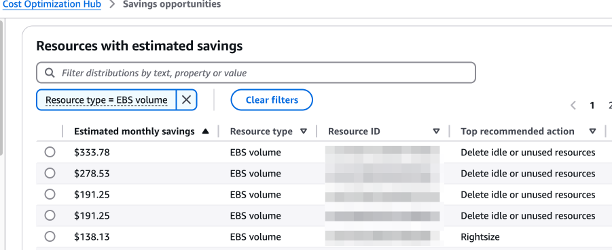
In AWS Console, visit the Cost Optimization Hub and filter findings by EBS Volume to identify idle resources.
How to fix?
Before deleting an EBS Volume, ensure it is no longer required. Check the creation date to assess its relevance.
If in doubt, create a snapshot of the volume as a precaution.
In AWS Console, go to the EC2 service and select the Volumes section.
Filter by Volume type, select the volume you want to remove, and click Actions > Delete Volume. Confirm the deletion.
If the resource is provisioned automatically via IaC (such as CloudFormation or Terraform), update the corresponding code to reflect the changes.